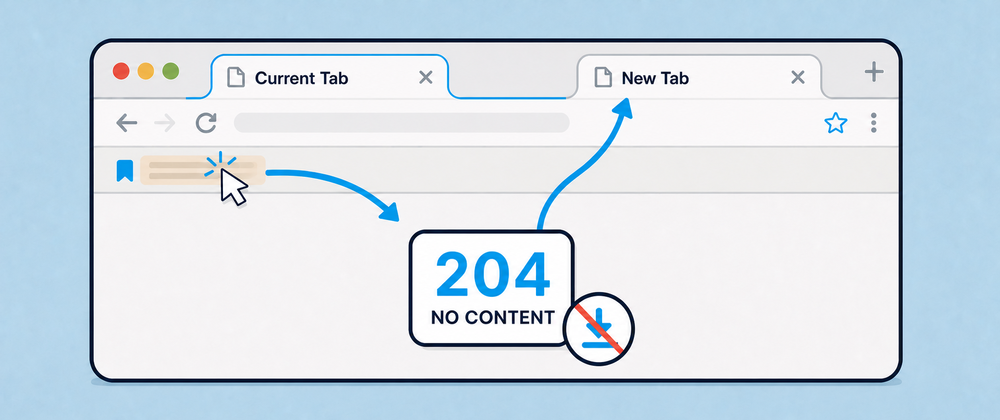
In the previous article, I described how I solved a simple browser problem: opening a bookmark in a new tab with a regular left click.
Browsers already let you open a bookmark in a new tab with a middle click, Ctrl+click on Windows and Linux, or Command+click on macOS. But a regular left click is more natural and convenient, with only one drawback: it replaces the current page. You can lose your scroll position or anything you typed into a form. I wanted a left click to preserve the current tab and open the bookmark in a new one by default.
Previous solution
I solved it with a browser extension. Getting there was not easy: the Extensions API does not provide a method to change the bookmark click behavior. I needed a smart way to detect the click and stop the current tab from navigating to the bookmarked page.
Finally, I found a workable sequence: a special URL marker and a fake download. Each bookmark URL gets a special newtab@ marker:
https://example.com → https://newtab@example.comUnder the URL Standard, an HTTP URL can contain username:password before the host, separated from it by @. I used newtab as the username and left the password empty. The bookmark remained a valid URL while carrying a marker that the extension could detect.
The flow:
- The user clicks the bookmark
https://newtab@example.com - Chrome redirects the request to a fake download
- Chrome starts a download and keeps the current tab untouched
- The extension intercepts the download and instantly cancels it
- The extension opens the original URL
https://example.comin a new tab
This approach worked, so I packaged it as the Open Bookmarks in a New Tab extension. It started growing organically and reached more than 10,000 users.
New problem
One problem kept coming back after I released the extension. Some users reported seeing a download animation after clicking a bookmark.
I could not reproduce it myself, but I knew the effect was possible. The extension started a download and canceled it almost immediately, and browsers could handle those two actions differently.
The situation got worse after Chrome 151 was released. The download animation started appearing after each bookmark click on my machine too:
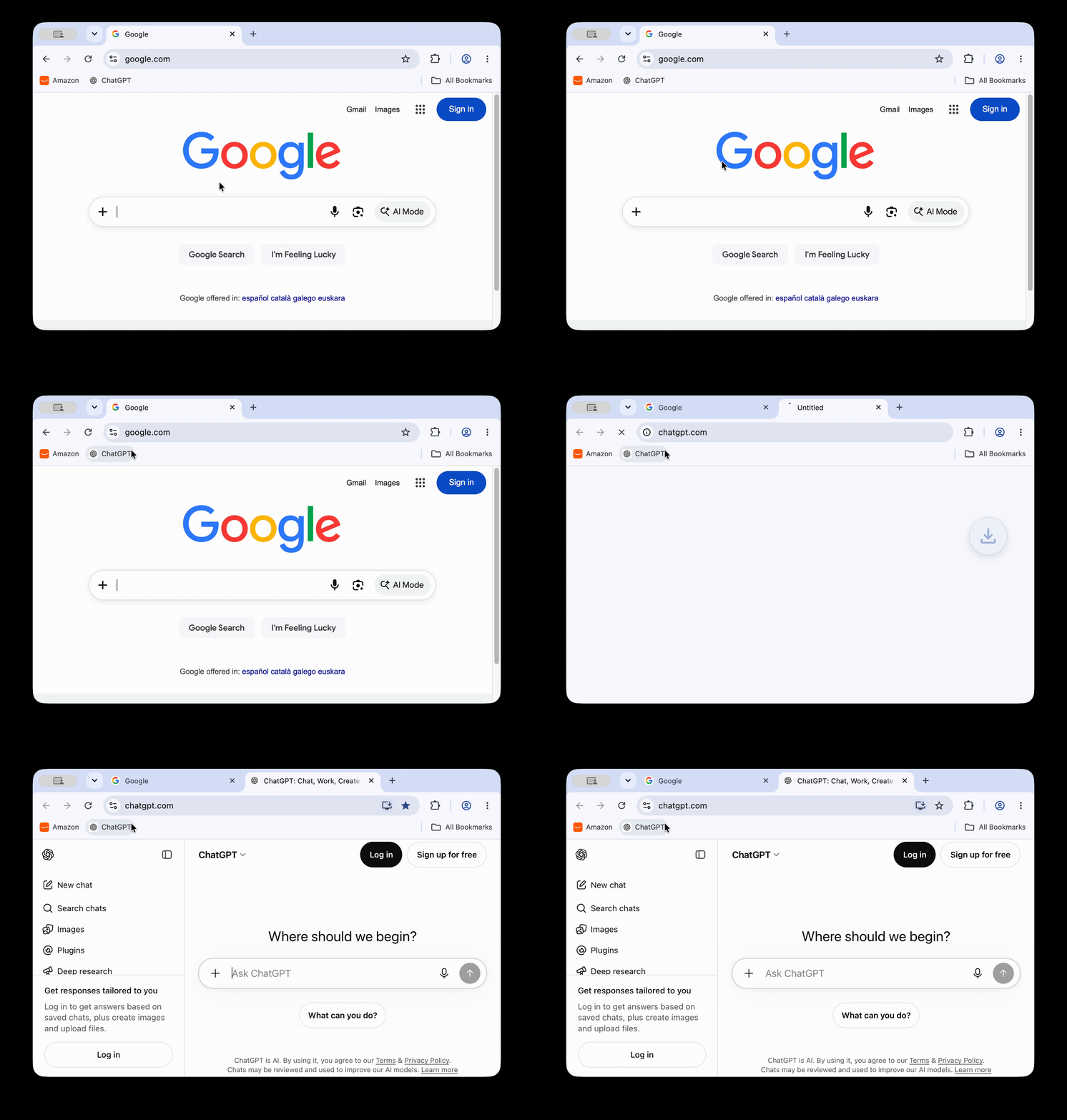
I also received a few emails from users who described the same problem and asked for a solution.
I don’t know which exact change in Chrome caused it. The visible behavior was clear: the extension started a download and canceled it at once, but Chrome now showed the download UI before the cancellation could hide it. I had even kept the extension’s background worker awake to reduce the chance of this animation, but that was no longer enough.
Users began uninstalling the extension, so I needed a fix fast.
Solution
During a long AI brainstorming session, I looked for something that could handle a bookmark click without navigating the current tab to the target page. I found an HTTP response that fit: 204 No Content.
According to the specification, HTTP status code 204 tells the browser that the server completed the request but has no content to return. RFC 9110, section 15.3.5 includes the detail I needed:
the user agent does not need to traverse away from its current “document view”.
When Chrome receives a 204 response, it keeps displaying the current page. The extension can then open the bookmark URL in a new tab.
I was excited when the first prototype worked! The current tab did not navigate, and Chrome showed no download animation. I could remove the whole download hack and the race against Chrome’s UI.
The new flow:
- The user clicks the bookmark
https://newtab@example.com - Chrome redirects to the 204 endpoint
- Chrome keeps the current tab unchanged
- The extension captures the navigation attempt and opens
https://example.comin a new tab
The newtab@ marker from the first version remains useful. It tells the extension which navigations belong to managed bookmarks. The fake download is gone, along with the downloads permission and the code that kept the background worker awake.
Endpoint implementation
Each bookmark click now makes a quick request to /204. To make this navigation as fast as possible, I used an Amazon CloudFront function. The CDN returns the response from a location close to the user. The function fits in a few lines:
function handler(event) { return { statusCode: 204, statusDescription: 'No Content', headers: { 'cache-control': { value: 'public, max-age=86400', }, }, };}The response is cached in the browser for one day (86400 seconds). While it is cached, Chrome handles it without making a network request. I kept this one-day lifetime for now so I can roll out changes to the endpoint if needed. I plan to increase it later to reduce the number of requests and shorten the delay even further.
After the release
I released the new version of the extension and watched requests reach the new /204 endpoint. I received no new complaints from users, and the user count started growing again.
A 204 response now connects the bookmark click to the new tab. Chrome leaves the current page untouched while the extension opens the bookmark in a new tab:
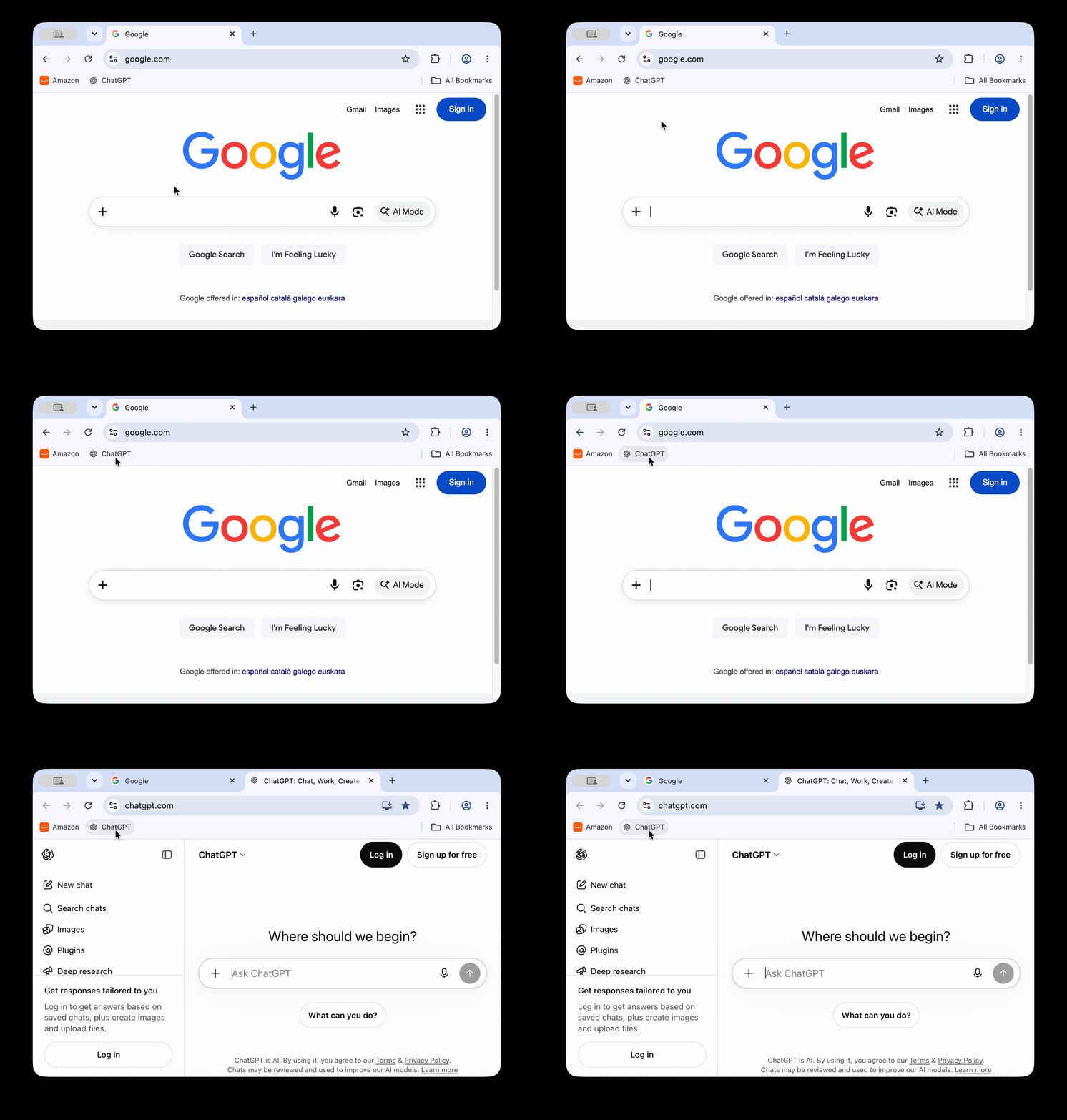
This behavior feels natural and convenient. You are welcome to try it and share your feedback.
Thanks for reading!