Testing a browser extension is more than checking a web page. You may need to prepare storage, open an extension popup, options page, or side panel, trigger browser events, and check data migration between extension versions.
Playwright’s official extensions guide shows how to launch a browser with an extension, wait for its service worker, and find its ID. That gives a good starting point, but the extension-specific parts of the tests still need fixtures and helpers.
In this post, I want to introduce my project, playwright-webext, which makes browser extension testing easier. I’ll take a simple extension and showcase 3 tests covering the extension install, interacting with the popup, and checking the upgrade to a new version.
Example Extension
The example extension is a simple todo list. Users can open its popup to view their tasks, add new items, and remove completed ones:

The extension keeps its tasks in chrome.storage.local. When the popup opens, it reads the saved list and displays it.
Set up the tests
Install the dependencies:
npm install -D @playwright/test playwright-webextThen install Chromium for Playwright:
npx playwright install chromiumBuild the extension into the dist directory.
Configure Playwright to point to the built extension:
import { defineConfig } from '@playwright/test';import type { WebextOptions } from 'playwright-webext';
export default defineConfig<WebextOptions>({  testDir: './test',  use: {    extensionPath: './dist',  },});
Test the installation
I’ll start with the simplest test. On installation, the extension saves the current date in chrome.storage.local for analytics purposes:
chrome.runtime.onInstalled.addListener(({ reason }) => { if (reason === 'install') { chrome.storage.local.set({ installationDate: new Date().toISOString() }); }});The test to check this behavior is a single line:
import { test } from 'playwright-webext';
test('saves the installation date', async ({ extension }) => {  await extension.storage.local.expect('installationDate').toMatch(/^\d{4}-\d{2}-\d{2}/);});
Playwright-webext provides an extension fixture that automatically installs an extension before each test. The storage assertion waits for the installation handler to save a value starting with YYYY-MM-DD.
Run the tests with:
npx playwright testBy default, Playwright runs Chromium in headless mode, without a visible browser window. This keeps the run fast and lightweight. The result appears in the terminal:

To watch the test run in a visible browser, use headed mode:
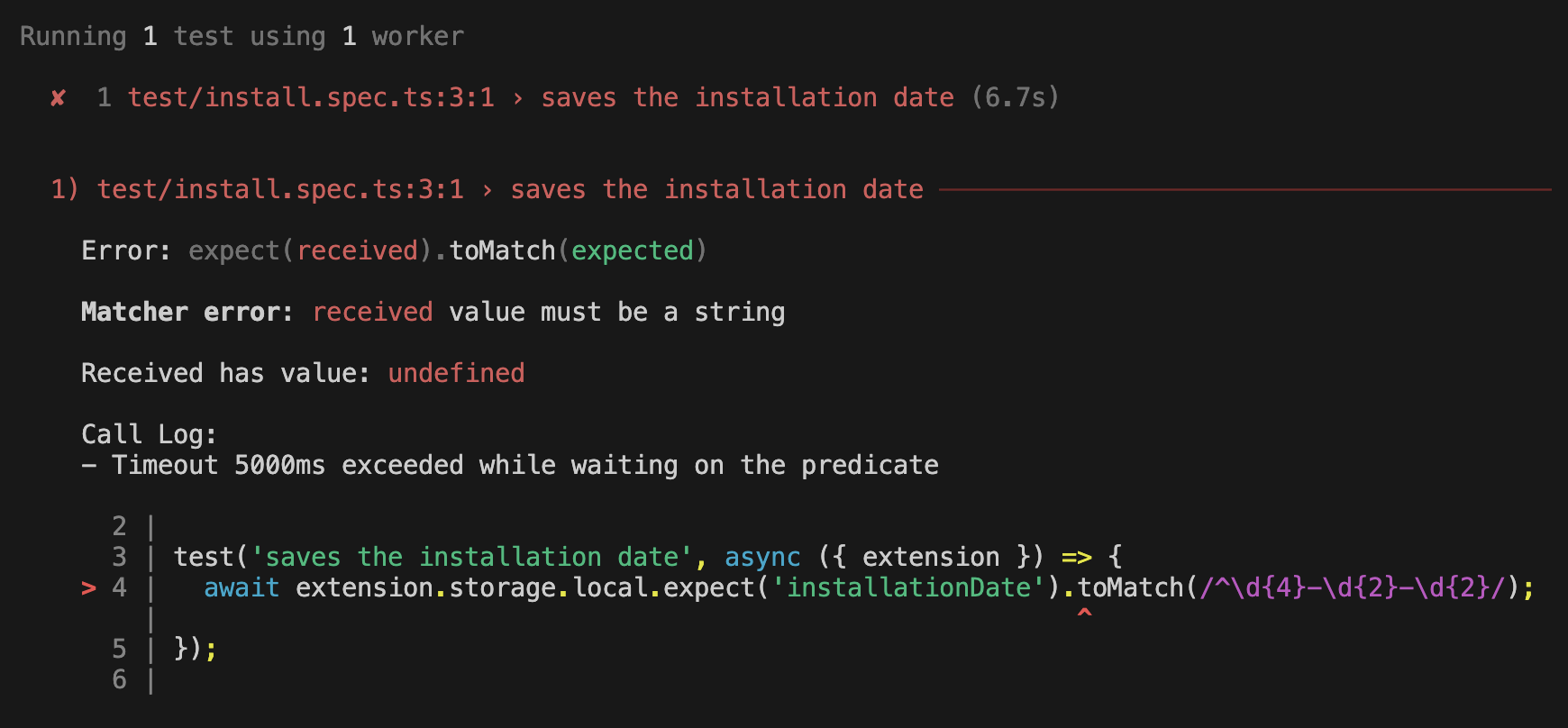
npx playwright test --headedIf for some reason the extension does not write the installation date to storage, I’ll get an error:
Test the popup
The next goal is to check the extension popup. I’ll add two tasks to the storage, open the popup and check that the tasks are displayed. Then I’ll delete the first task and check that only the second remains in the storage:
import { expect } from '@playwright/test';import { test } from 'playwright-webext';
test('shows saved tasks in the popup', async ({ extension }) => {  // prepare 2 tasks in storage  await extension.storage.local.set({    todos: ['Buy groceries', 'Read a book'],  });
  // open the popup and check the tasks are visible  const popup = await extension.openPopup();  await expect(popup.getByRole('listitem')).toContainText([    'Buy groceries',    'Read a book',  ]);
  // delete the task  await popup.getByRole('button', { name: 'Delete Buy groceries' }).click();
  // check the storage for remaining task  await extension.storage.local.expect('todos').toEqual(['Read a book']);});
The same extension fixture provides a method for opening the extension popup: extension.openPopup(). It returns a regular Playwright Page instance that I can use for testing the popup with Playwright locators and assertions.
Playwright automatically waits for the tasks to appear in the popup. The list can contain extra items, but the two expected tasks must appear in the given order.
The popup test passes too. I can open the HTML report to inspect the result:
npx playwright show-reportThe report provides access to traces showing each test step, along with screenshots of the page at that point:
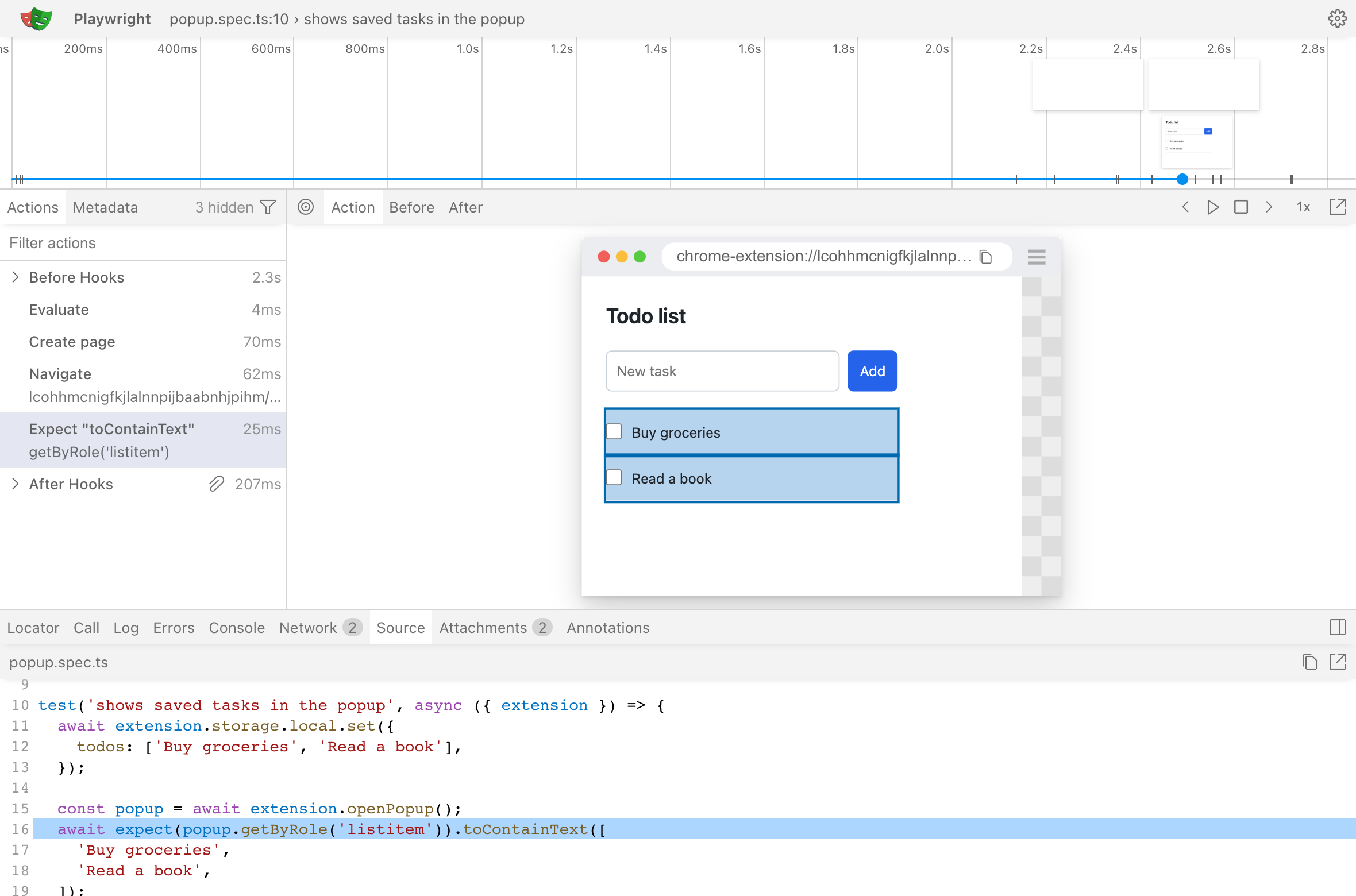
You may notice that the popup opened in a regular tab rather than as a native browser popup. This is a workaround for a Playwright limitation: its supported Page API does not expose the native popup for interaction. In most cases, using a regular tab is acceptable and gives many opportunities to test the popup content using Playwright locators.
Test the migration
The third test is a bit more advanced. Suppose I release v2 of the extension with a new format for storing saved tasks.
In v1, tasks were stored as an array of strings:
{ "todos": [ "Buy groceries", "Read a book" ]}In v2, tasks are stored as an array of objects:
{ "todos": [ { "name": "Buy groceries", "done": false }, { "name": "Read a book", "done": false } ]}Playwright-webext can test this migration too.
For this test, place the v1 build in a separate directory, test/dist-v1. Version 2 stays in dist, as configured in extensionPath. Setting extensionAutoInstall: false allows the test to install the old version first:
import { test } from 'playwright-webext';
test.use({  extensionAutoInstall: false,});
test('migrates todos from v1 to v2', async ({ extension }) => {  // install the old version  await extension.install('./test/dist-v1');
  // populate the storage  await extension.storage.local.set({    todos: ['Buy groceries', 'Read a book'],  });
  // upgrade to the new version  await extension.upgrade();
  // check the migrated data  await extension.storage.local.expect('todos').toEqual([    { name: 'Buy groceries', done: false },    { name: 'Read a book', done: false },  ]);});
extension.upgrade() keeps the extension’s stored data and triggers the update handler. The version 2 extension converts the strings to objects in its update handler, and the storage assertion waits for the result. This ensures that existing users keep their tasks when they update.
Putting it together
I run all three tests and get the standard HTML report. It includes the results, screenshots, and traces for each test:

Recap
Playwright-webext takes care of extension testing setup, letting you focus on the actual scenarios. You’re welcome to check the documentation and try it with your extension. Thanks for reading!